For the people running competitions, ChalkItUp's admin dashboard gets a lot of attention. Rightly so — it's where you spend most of the day. But the judging interface is where the competition actually happens, on whatever phone or tablet a judge happens to have in their pocket.
We rebuilt it. Here's what changed and why each change matters when you're trying to run 200 gymnasts through four apparatus in four hours.
Rotation progress on the judge screen
Judges now see a rotation progress widget on their scoring screen. It shows scored and total counts for each rotation in the active round, with the judge's current rotation highlighted. It collapses to stay out of the way between gymnasts and updates automatically after every submission.
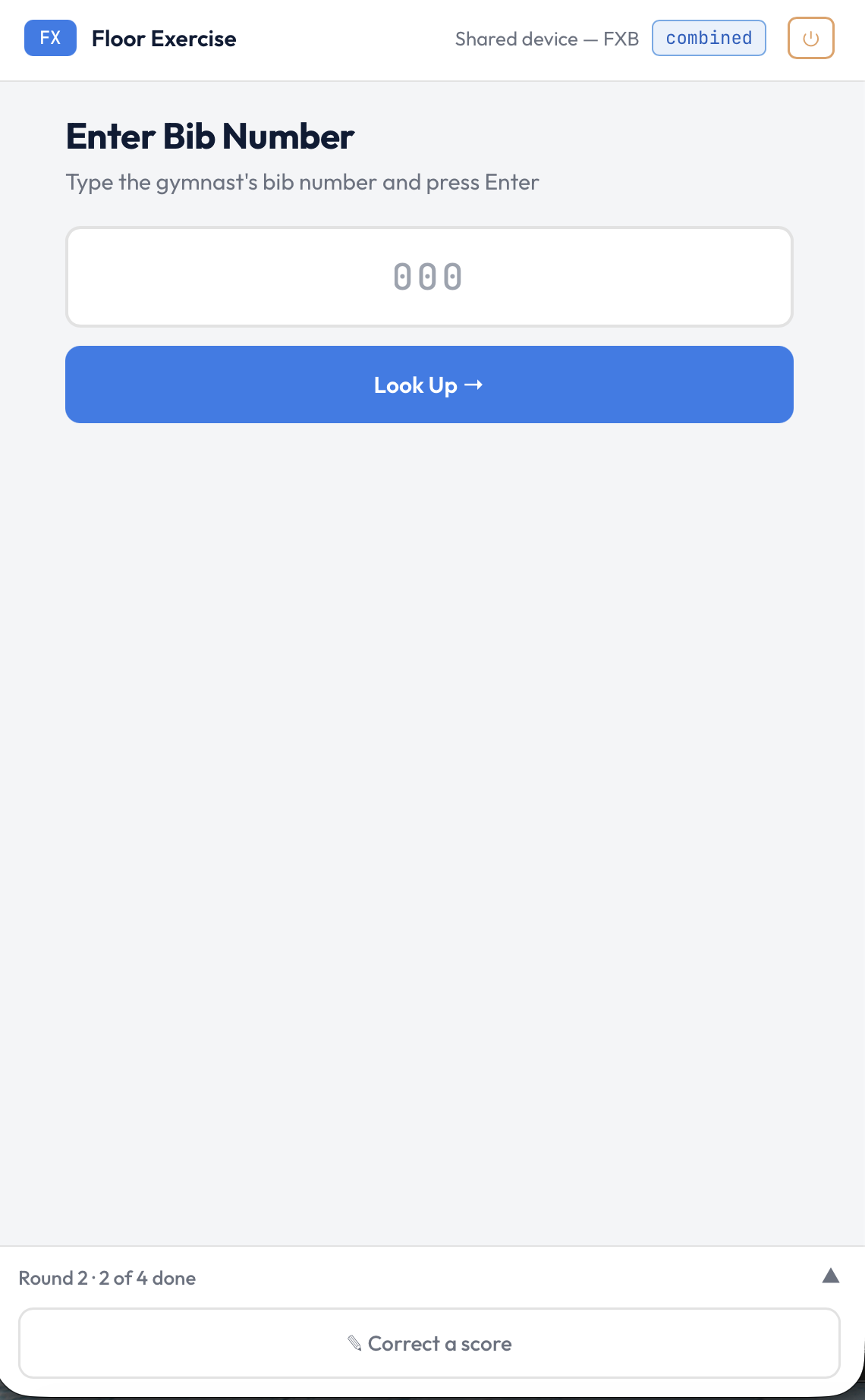
Collapsed between gymnasts — out of the way, always current.
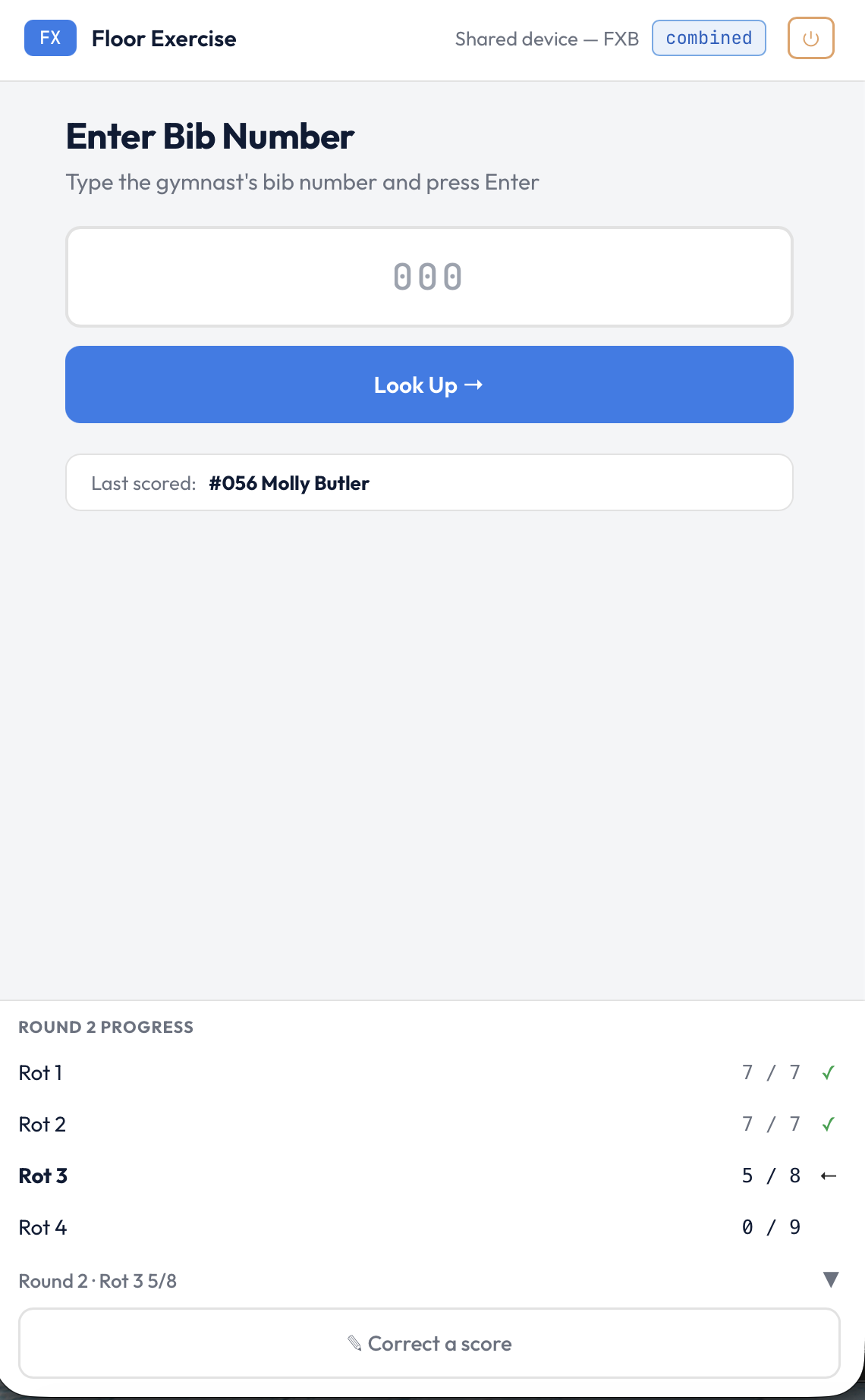
Expanded — scored/total counts for every rotation in the round.
The practical effect: judges no longer need to ask the admin how many gymnasts they have left, or whether a bib they can't find has already been scored. The information is on their screen, always current.
Drill-down to individual gymnasts
Tap any rotation row and it expands to show every gymnast in that rotation — who's been scored and who hasn't. Unscored gymnasts show a tap-to-jump arrow: one tap and the scoring screen opens pre-set to their bib number, ready to go. No retyping, no searching.
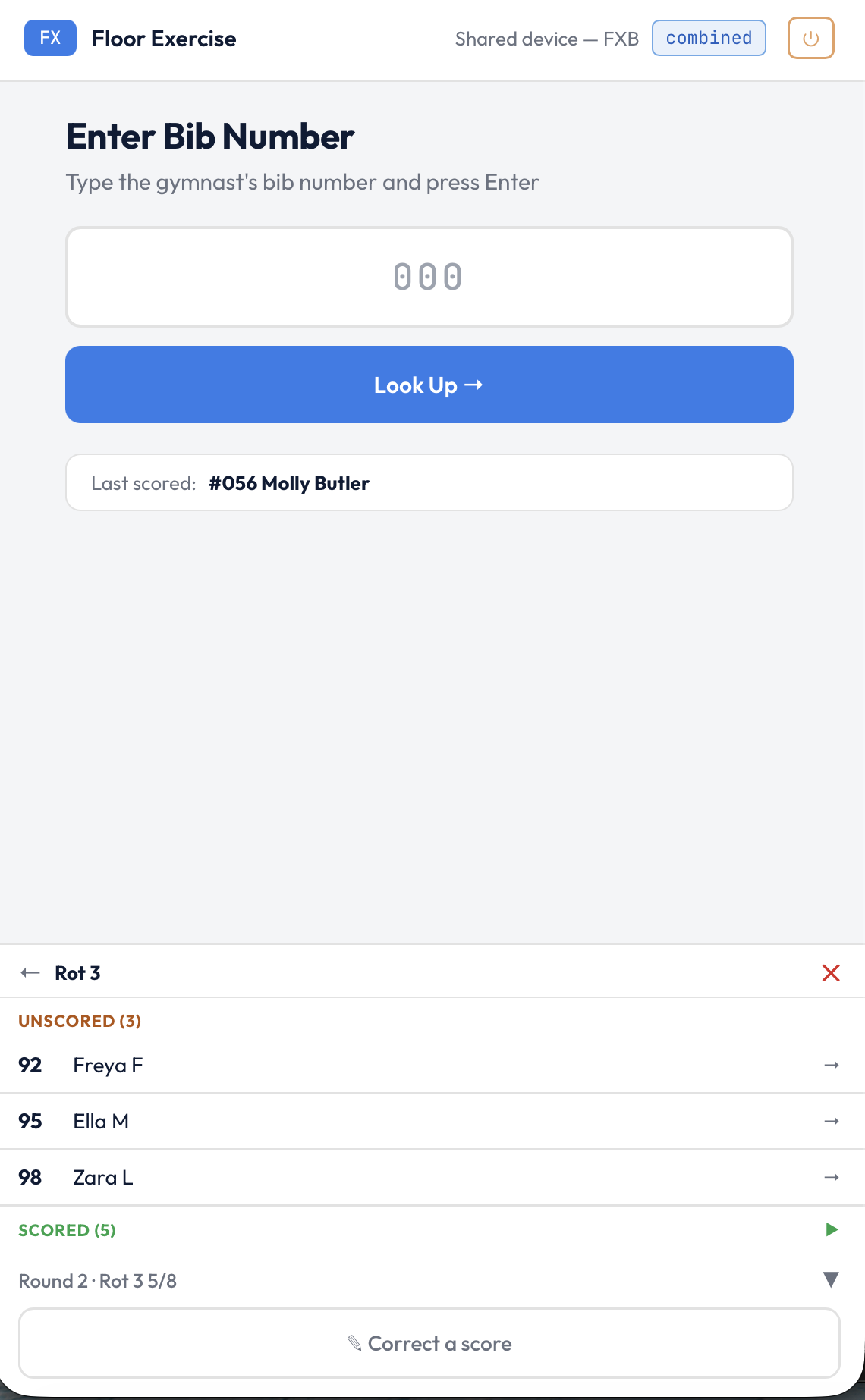
Drilled into Rot 3 — unscored gymnasts ready to tap and jump straight to scoring.
Scored gymnasts show their score. For Vault and other multi-attempt apparatus, the drill-down shows the attempt count (1/2, 2/2) and all scores submitted so far. If score correction is enabled on the panel, tapping a scored gymnast's row jumps directly to the correction screen — useful in the moment when a judge realises they've made an error without needing to find the bib number again.
Score correction is a panel setting you can turn on in the Judging tab. It lets judges correct their own scores without admin involvement, with an audit trail kept for every change.
Scoring Closed — clear end state for judges
When a competition is marked as complete, judges now see a clear Scoring Closed screen. Bib lookup, score submission, and corrections are all blocked. A Log out button is shown so judges know they can re-access the system if the competition is re-opened.
This matters in practice: previously, when scoring ended, the judge screen just went quiet. Judges didn't always know if the system had frozen, if they'd been logged out, or if the competition was genuinely over. The Scoring Closed screen removes that ambiguity.
The iOS keyboard no longer pops between scores
A small change with a noticeable effect: the bib number field no longer auto-focuses when a judge returns to the entry screen. On iOS, auto-focus triggers the keyboard to open — a minor irritant once, but a genuine annoyance when it happens between every score across a 200-gymnast competition. It no longer happens.
A fallback route for older devices
If a judge arrives on the day with an older iPad (iOS 12, or a first-generation iPad Air) that can't run the main ChalkItUp interface, there's now a fallback: the /judge-legacy/ route serves a simpler, more widely compatible version of the scoring screen. Scores submitted via either route are identical in the system — same data, same audit trail, same result. The legacy route is a safety net, not a different system.
Why judges matter more than the admin thinks
Competition organisers control the setup. Judges control the data. A judge who is confused, slow, or unsure whether their score went through is a problem that lands on the admin's desk — in the form of missing scores, duplicate submissions, or a nervous queue forming behind them at the apparatus.
Everything in this update is aimed at making the judge experience quieter, clearer, and more self-sufficient when it counts. The less a judge needs to ask the admin, the better the day runs for everyone.
Try the judge interface yourself
Start a free trial, create a competition, and log in as a judge on your phone. See exactly what your judges will see on the day before the day arrives.
Start free trial →