Most competition management software is strong on setup. Entries, schedules, panel configuration — the work you do the week before. Where things tend to fall apart is during the event: the announcer working from a small screen at the back of the hall, the judges who don't know their PIN, the results you're about to publish without being quite sure they're clean.
The three updates below are all aimed at that window — from the first judge briefing to the moment the final leaderboard goes public.
Announcer focus mode
Medal ceremony screen built for calling out results
A full-screen, large-type display of results by category — showing podium positions with tick-off controls so the announcer can mark each gymnast as called. Designed to run on a laptop or tablet at the front of the venue.
The standard leaderboard is excellent for spectators following results throughout the day. For an announcer reading out the top three in each age group and level, it's impractical — too much information, too small type, no way to track where you are in the list.
Announcer focus mode is a different view of the same data, built for that specific task. When you activate it from the Live tab, the screen switches to a large three-column grid showing results by category. Each row has a tick control — tap it when you've called that gymnast's result, and it greys out. The announcer can see at a glance which categories are done and which are still to call, without losing their place or accidentally reading a result twice.
The display is designed to be visible across a venue. Names and scores are rendered large enough to read comfortably at arm's length. The category pills at the top let you jump between sections — levels, age bands — without scrolling through the full leaderboard.
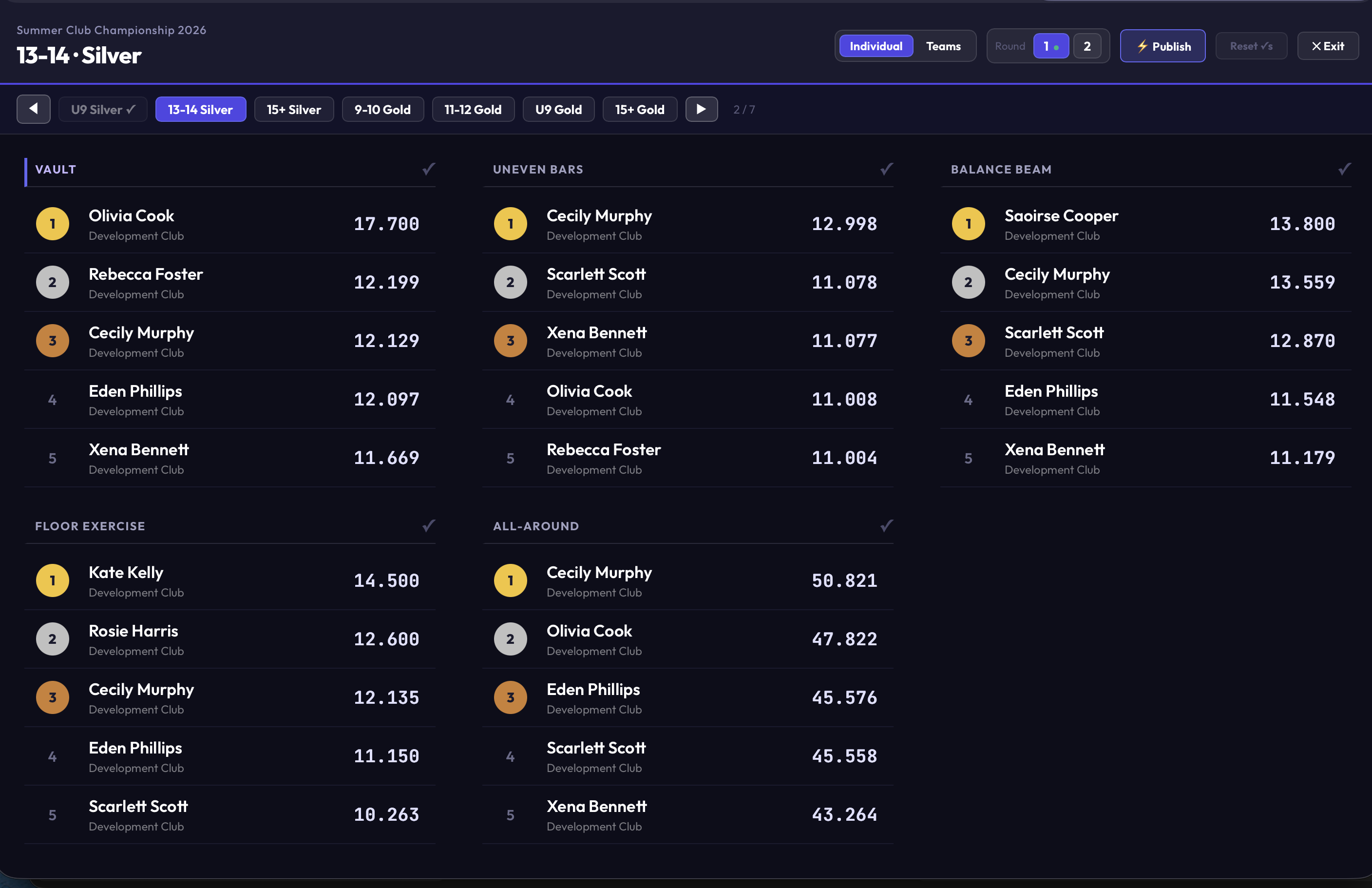
Announcer focus mode — large type, tick-off per category, built to read out results from.
Run it on a separate device. Announcer focus mode is a view on the Live tab — if you keep your admin session open on your primary device, open the Live tab in announcer mode on a second device and hand it to whoever is reading results. The tick-off state is local to that session, so it doesn't interfere with the main admin view.
Judge helper cards
Credit-card PDF for every judge — competition code, PIN, and QR code
Generate a print-ready PDF from the Panels page. Each judge gets a wallet-sized card with their competition code, PIN, a QR code pointing directly to the scoring screen, and their apparatus assignment. Print and hand out before competition begins.
The moment before competition starts, every judge needs the same three things: the URL to open, the competition code, and their PIN. Communicating all three verbally in a briefing is error-prone. Typing a URL on a phone while standing at an apparatus is worse. A card with a QR code is neither.
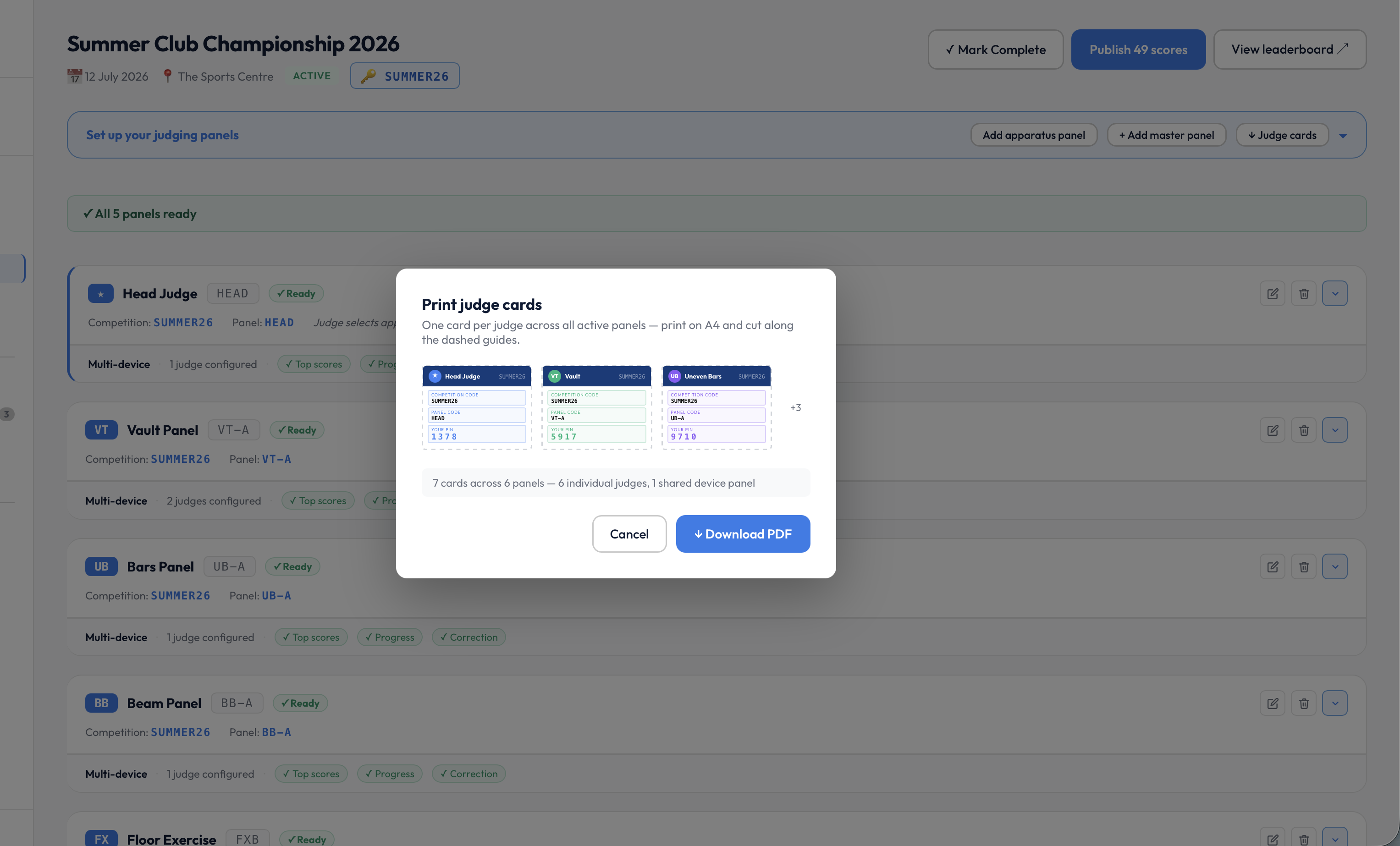
The Print judge cards modal — one card per judge, ready to download as a PDF.
The judge helper card PDF generates directly from ChalkItUp's Panels page. Click Print judge cards, and a formatted PDF opens — one credit-card-sized panel per judge, ready to print on standard paper and cut, or run through a card cutter. Each card includes:
- The competition code (the four-letter code judges enter on the login screen)
- The judge's individual PIN
- A QR code that opens the scoring screen directly — no URL to type
- The judge's apparatus and panel assignment
- The competition name and date
Scoring integrity panel
Live validation surfaced on the Live tab — before you publish
The scoring integrity panel on the Live tab checks every score in real time for incomplete splits, duplicate submissions, over-attempt entries, and published zero scores. Green means clean. Any flag drills down to the exact gymnast and apparatus affected.
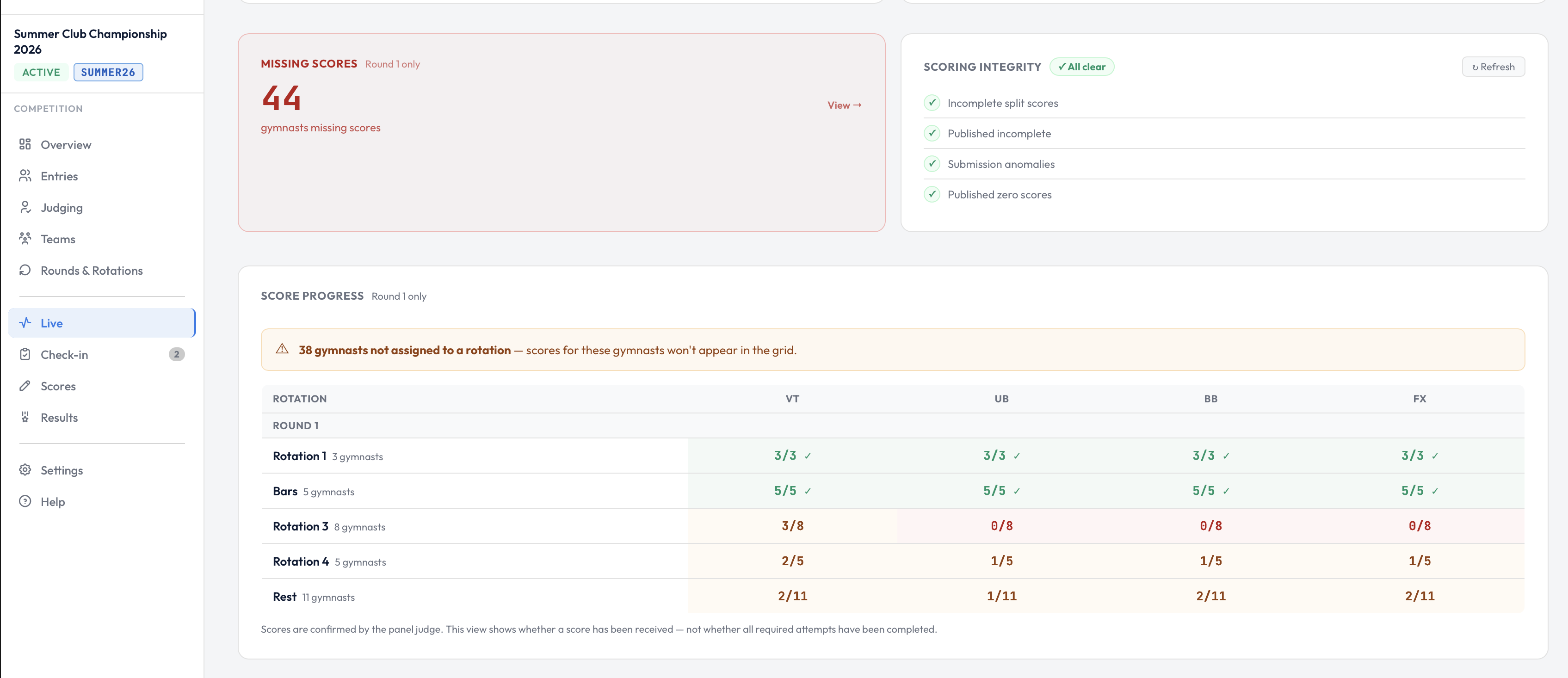
The Scoring Integrity panel, all clear, alongside missing scores and rotation progress.
ChalkItUp already has system-level controls that block certain errors at the point of entry — a judge can't submit a score that falls outside the configured range, for example, and duplicate submissions for the same gymnast on the same apparatus are caught automatically. Most problems never reach the system in the first place.
But some issues are genuine edge cases that only become visible once you look at the full picture — an incomplete split where the D judge has scored but the E judge hasn't yet, or a vault attempt logged one more time than the format allows. These aren't data-entry errors; they're things that happen during a busy rotation and are easy to miss until you're looking at a result that doesn't add up.
The scoring integrity panel is built for that moment of reassurance before you publish. It surfaces on the Live tab — the same view you're looking at when you're deciding whether results are ready to go — and checks four things in real time:
- Incomplete splits — routines where D has been entered but E is missing, or vice versa
- Duplicate roles — the same judge type submitted twice for the same gymnast on the same apparatus
- Over-attempts — more vault scores recorded than the competition format allows
- Published zeros — scores pushed to the leaderboard with a zero where a score should be
Green across all four means you're clean. Any flag is clickable — it takes you straight to the gymnast and apparatus affected, so you can resolve it without hunting through the full score list.
This runs continuously throughout the competition. As scores come in, the panel updates. If a duplicate submission lands mid-rotation, it flags before you publish — not after.
All three updates are live now. If you're running a competition in the coming weeks and any of these make a difference on the day, we'd like to hear about it — [email protected].
Try ChalkItUp at your next event
All features — including announcer mode, judge cards, and scoring integrity — are included in the free trial. Set up a full competition with no card required.
Start free trial →